 Reddate TV
Beginner guide
Add your first addons.
Reddate TV starts empty on purpose: you choose the rows on Home and where videos come from. This takes about five minutes.
First, what is an addon?
An addon is a small web service that answers one question. Reddate TV asks it, and shows the answer. There are three kinds, and you usually want one of each.
- Catalog addon. Fills Home with rows: trending movies, popular shows, new releases. Without one, Home is empty.
- Stream addon. When you press Play, it returns the list of places the video can come from. Without one, you can browse but not play.
- Subtitle addon. Adds subtitle languages. Optional.
Step 1 · Find the addon's link
Every addon has a link that ends in manifest.json. That link is all Reddate TV needs.
- Go to the addon's own page, or to a community addon list such as stremio-addons.net. Reddit's addon communities (search for "Stremio addons" or "Nuvio addons") also share lists. Addons made for Stremio work in Reddate TV.
- Open the addon's page and look for Install, Install to Stremio or Copy link.
- Use Copy link if there is one. If you only see an Install button, right-click it and copy the link address. A link starting with
stremio://works too, and Reddate TV changes it for you.
Step 2 · Configure it first, if it asks
Some addons have a Configure page: choose languages, quality, or sign in with a service you subscribe to. Do that first, then use the Install or Copy link button on the page that follows, because the configured link is different from the plain one.
Step 3 · Add it in Reddate TV
- On the TV, open the side menu (press Left at the edge of Home) and choose Addons.
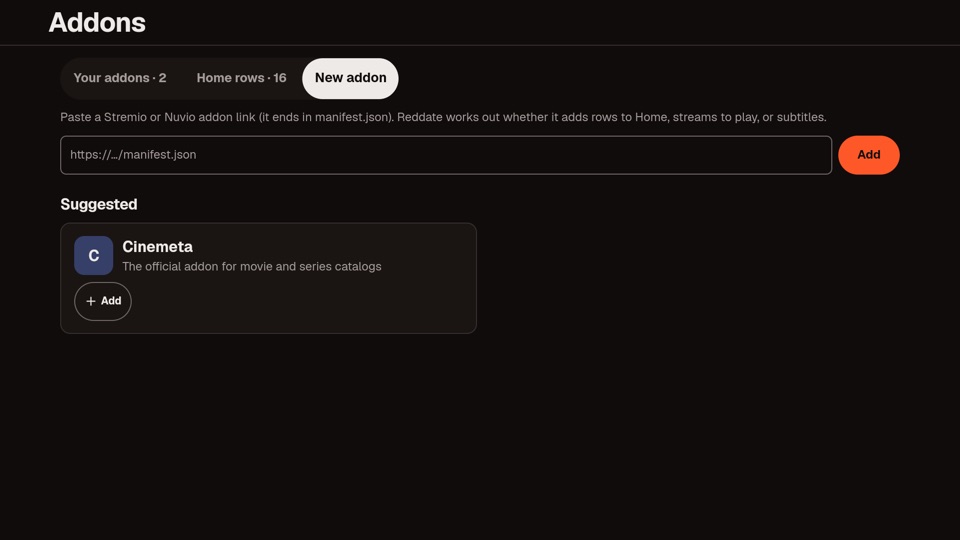
- Move to the New addon tab. It opens by itself when you move onto it, no OK needed.
- Paste or type the link, then press Add.
Tip: the box accepts the link with or without manifest.json at the end, and the stremio:// form.
Step 4 · Check that it worked
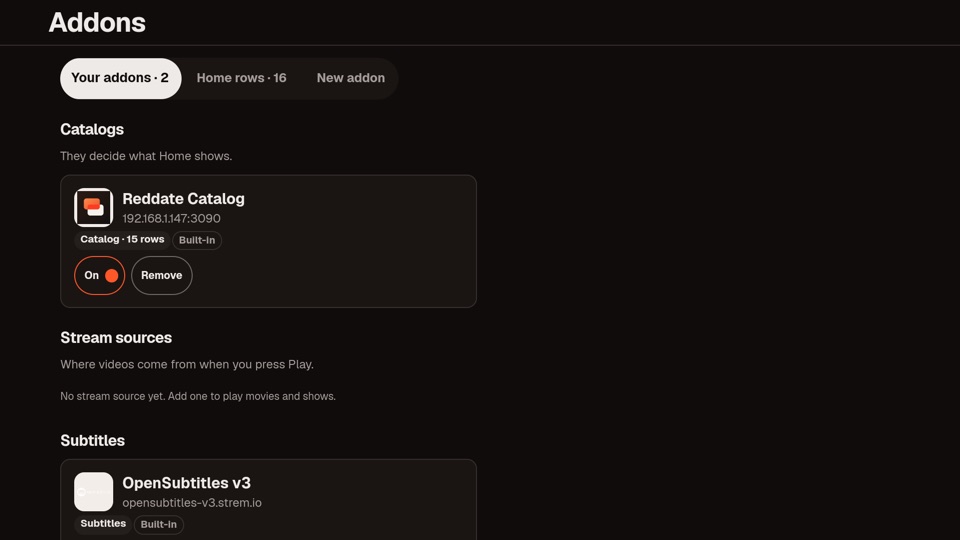
- Catalog addon: new rows appear on Home. If the banner shows the wrong thing, reorder rows in the Home rows tab.
- Stream addon: open a title and press Play. You'll see stream cards with the addon's logo, quality, language and a green, yellow or red connection check.
- The addon's card on the Addons screen shows Catalog, Streams or Subtitles so you know what it does.
A good first setup
- One catalog addon, to fill Home with rows. A metadata addon like Cinemeta is a common beginner choice.
- One stream addon you trust.
- Optionally a subtitles addon for more languages.
The order of catalog addons matters: the first one that supplies a row sets the big banner. Start with a few, not twenty.
When something goes wrong
"Couldn't load" on the addon card
The link is wrong, the addon is down, or it needs HTTPS. Open the link in a browser; you should see text starting with a curly bracket.
Home is empty
You have no enabled catalog addon. Add one, or turn an existing one on.
Pressing Play shows no streams
You have no stream addon, or it doesn't have that title. Try a popular title first, and check the addon's page for any account it needs.
Streams are red
They are slow right now on your connection. Pick a green one, or choose a lower quality.
Remove or pause an addon
On the Addons screen, switch it Off to pause it, or Remove to delete it. Built-in ones can be switched off too.